GCW Help
Game Controller Wedge Description
By Jim Lutherhttps://github.com/jamjolu/Game-Controller-Wedge
GCW is a tool for creating and executing macros
for Windows computers that are triggered by pressing game
controller buttons. It is very much like Joy2Key or XPadder, but it is easier and
has very capable macro abilities. With GCW you type a macro into
a text field, and you are ready to try it.
Is GCW useful for gamers? I am not so sure. It maybe that GCW responds too slowly for many gamers, and because it a wrapper for AutoHotKey, it could get you banned on gaming sites. But, it can do a lot of typing, clicking, program launching (and more) with a single button press which could be valuable to those who wish to minimize the effort to complete repetitive tasks, or as a tool for making activities more accessible and less tiring. It is possible that some gamers may find it useful.
With GCW you can compose up to 12 macros that you can save as a “profile” that you name. You can create as many profiles as you like.
Built-in commands allow you to run programs, open folders and known file types, open web pages, toggle through open windows, open active windows, and change profiles, click targets, and more.
GCW is based on Autohotkey V1.1. The well known Autohotkey (AHK) scripting tool offers means for emulating keyboard and mouse actions, interacting with windows, and much more. It is frequently used to automate repetitive computer tasks.
Is GCW useful for gamers? I am not so sure. It maybe that GCW responds too slowly for many gamers, and because it a wrapper for AutoHotKey, it could get you banned on gaming sites. But, it can do a lot of typing, clicking, program launching (and more) with a single button press which could be valuable to those who wish to minimize the effort to complete repetitive tasks, or as a tool for making activities more accessible and less tiring. It is possible that some gamers may find it useful.
With GCW you can compose up to 12 macros that you can save as a “profile” that you name. You can create as many profiles as you like.
Built-in commands allow you to run programs, open folders and known file types, open web pages, toggle through open windows, open active windows, and change profiles, click targets, and more.
GCW is based on Autohotkey V1.1. The well known Autohotkey (AHK) scripting tool offers means for emulating keyboard and mouse actions, interacting with windows, and much more. It is frequently used to automate repetitive computer tasks.
Please keep all the materials in the GCW folder together - if you don’t, you will experience a ton of error messages!
Table of Contents:
1. GCW /windows- an overview2. More about the GCW windows
3. What if I have 2 controllers?
4. Anatomy of a macro
5. More macro examples
6. GCW Special Commands
7. Combining macros and commands
8. Limitations/Contact
9. Where can I get a 12 button gamepad?
10. How can I get GCW?
GCW Windows:
This is the main GCW window where you define your macros, or issue commands.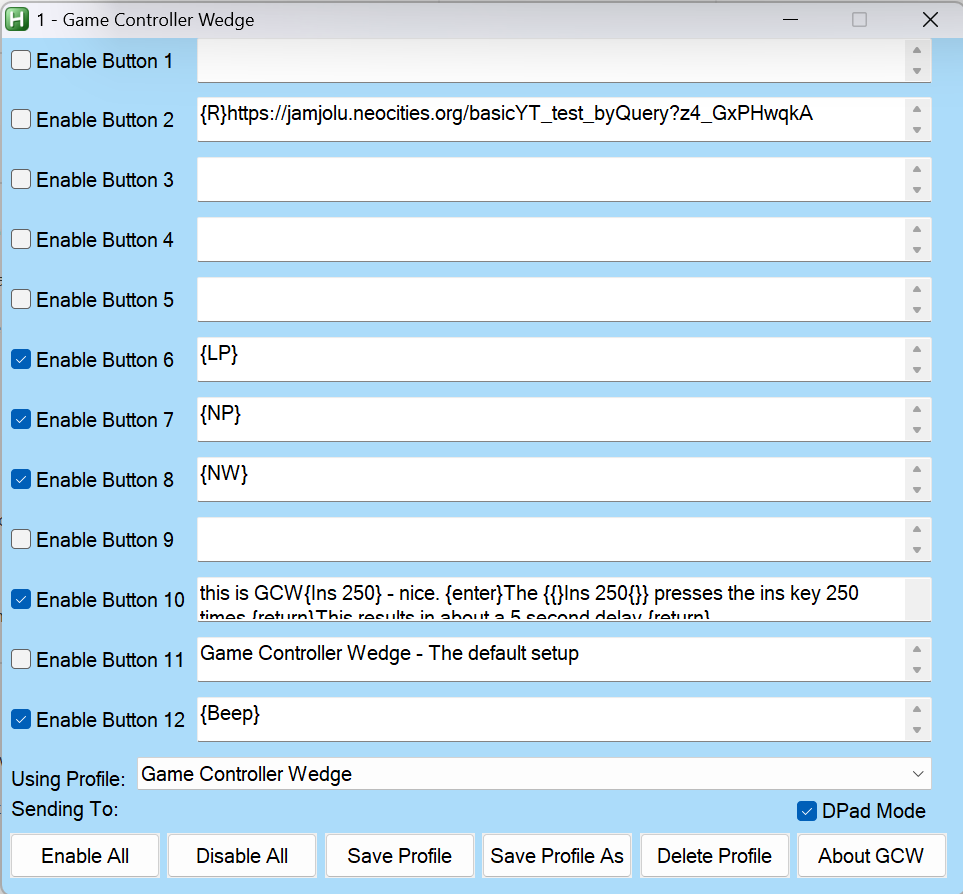
GCW supports up to 12 macros you define which are triggered by joystick or gamepad buttons 1 through 12.
In addition to gamepad buttons, GCW also optionally supports input from a game controller DPad (see more below), and from the keyboard (also see more below.)

This smaller Test Joy Buttons window lets you test your macros/commands without a game controller. This window, when open, sits on top of other windows.
Use the Game Controller Control Panel in Windows to see how your game controller buttons are mapped. (Click the Properties button.)
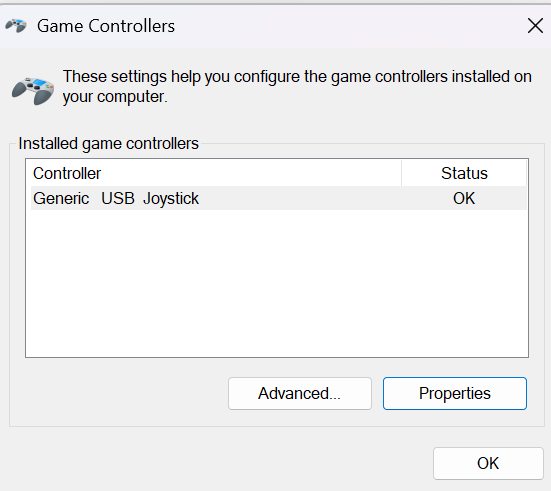
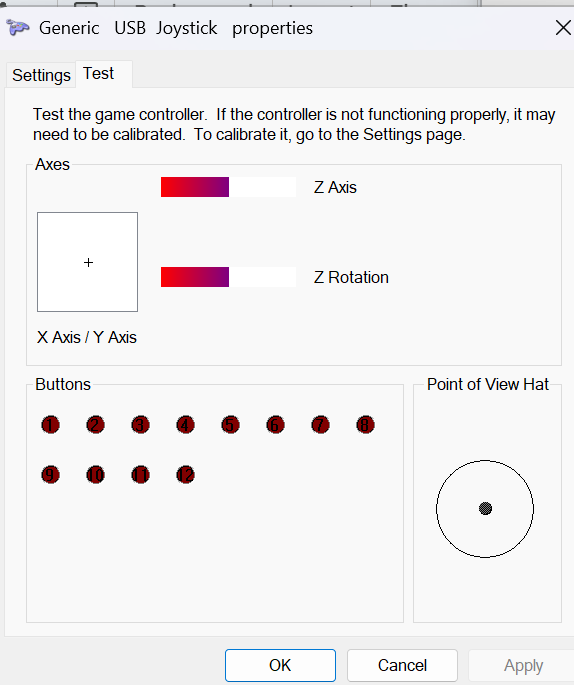
A screen capture of the main pop-up for the Windows Game Controller Control Panel and an image of the Properties pop-up associated with the Game Controller control panel in Windows
You can see those details and test your buttons in the Properties view.
Another helpful tool is this AutoHotKey script that can give you additional information about a game controller including which game controller number your controller identifies as:
https://www.autohotkey.com/docs/v1/scripts/index.htm#ControllerTest
(Click "ShowCode". Click the "Download Code" button in the upper right corner of the box that opened.
This is an AutoHotKey V1.1 script.)
Why use game controller buttons to launch macros?
Because game controller buttons are unlikely to cause things to happen in typical Windows applications - other than games.Return to Table of contents
More about the GCW Windows
- You can enable/disable any or all game controller buttons for this profile using the Enable check boxes, or the Enable/Disable All button.
- You can save changes you make with the Save Profile button. Be sure to Save any changes you want to keep before loading a new profile or exiting GCW
- You can create a new profile with the Save Profile As button.
- You can remove an entire profile with the Delete Profile button - except the default Game Controller Wedge profile
- You can select any profile from the Using Profile: drop down menu, or via the {GP} Special Command
- The Sending To: label (most times) shows the title of the application window that will receive your macros
- The KBD = On (or Off) is a new feature that
optionally allows a keyboard to launch macros where keys 1 -
9, 0 are the same as Joy buttons 1 - 10, and the PrtScr key
= joy button 11, and the Ins key = button 12. This feature
may be convenient especially for wireless keyboard users in
classrooms settings, but may cause confusion if you forget
GCW in keyboard mode is active. The keyboard access option
can be turned on/off with the Ctrl-Alt-k key combo.
Whenever the keyboard mode changes you will hear a status
announcement. The keyboard mode is auto-saved and will
persist between GCW sessions.
- About GCW opens this help file
- The GCW button in the Test Joy Buttons window
brings the main GCW window into the foreground
- DPad Not Active means that the DPad Mode box is unchecked.
- No Controller Present means DPad Mode is checked, but no there is no game controller plugged in that will work with this version of GCW.
- DPad Status: -1 means DPad Mode is checked, and no direction button is pressed.
- DPad Status: 0 means the DPad Mode is checked, and
the DPad Up button is pressed (Joy Button 9.)
- DPad Status: 9000 means DPad Mode is checked, and the DPad Right button is pressed (Joy Button 10).
- DPad Status: 18000 means DPad Mode is
checked, and the DPad Down button is pressed (Joy Button
11.)
- DPad Status: 27000 means DPad Mode is checked, and the DPad Left button is pressed (Joy Button 12.)
If you make a change to your DPad Mode the setting is auto-saved and will persist between sessions.
Return to Table of contents
And now there are 2 GCWs: one for Controller 1, and one for Controller 2
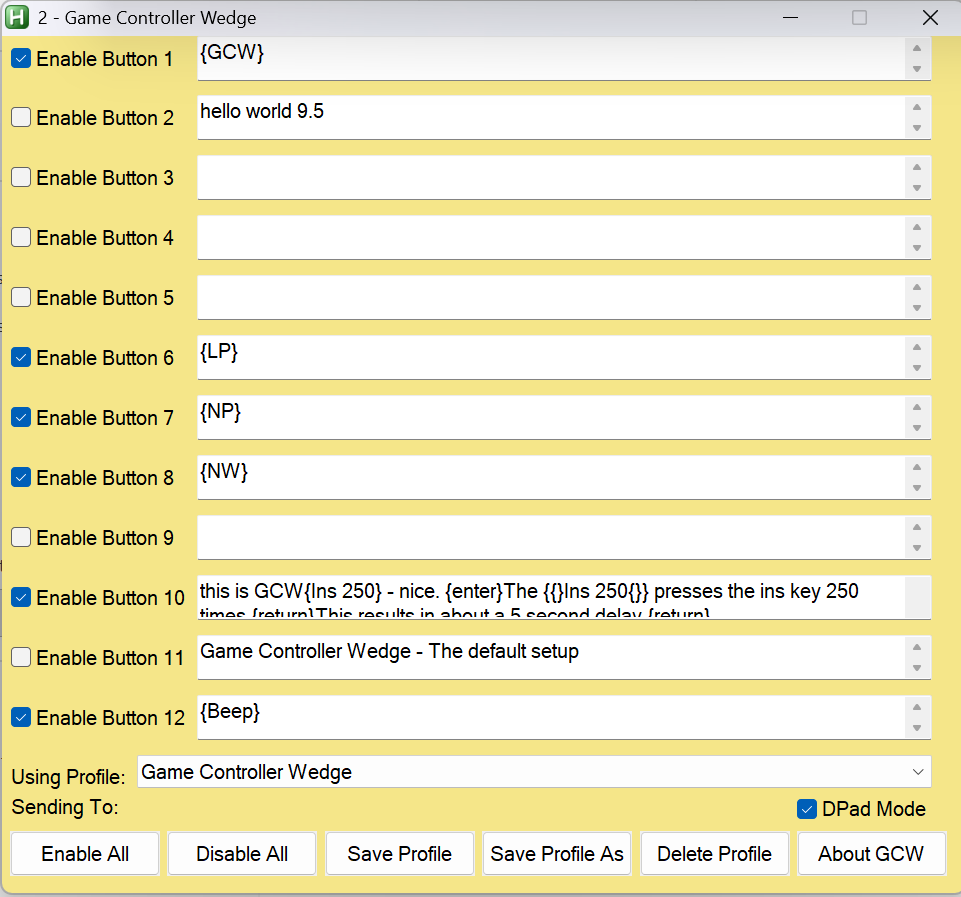

Controller 1’s settings and test buttons are in blue windows as shown here, Controller 2 windows in yellow
Launch GCW.exe or GCW.ahk for Controller 1
Launch GCW2.exe or GCW2.ahk for Controller 2
The exe versions, GCW.exe and GCW2.exe, have blue and yellow icons respectively.
Return to Table of contents
Anatomy of a Macro
GCW uses AutoHotkey and requires that you adhere to the AutoHotkey conventions for the Send command (at AHK site)An Example: ^p{enter}
This example opens the print dialog using the Ctrl-p key combo in many programs, followed by the Enter key which is a special character. You can also use {return} for the Enter key
Pressing and holding the Control key for the key that follows is denoted by the ^ character. Keys like Alt, Shift, Ctrl and the Windows key are referred to as modifier keys.
Special characters like tab, space (at the end or beginning of a macro), or backspace all need to be enclosed in braces as in: {left} for left arrow. Or, {F11} for the F11 key. See more about including special characters in your macros here at the AHK site.
Here is the list of modifier keys: (More about modifier keys here at the AHK site)
# = Windows key
! = Alt
^ = Control
+ = Shift
You can combine modifiers as in: ^!{down} which reads as Ctrl-Alt-(down arrow). This combo may turn your display upside down on some Windows computers! ^!{up} can restore your display.
Return to Table of contents
More macro examples
With the exception of the {Sleep} command mentioned below, all the examples on this page are carried out by the AutoHotkey Send command. In GCW the Send command does not require any prefix.A name and address fill in: Fred{tab}Flintstone{tab}345 Cave Stone Rd.{tab}Bedrock{tab}NY{tab}12345{enter}
You can press a special character key multiple times by adding a number to the special character: {tab 3} (3 tabs).
GCW sends keys faster than you can type, so delays may help a program to catch up to your macro, so a {Sleep} command described later in the document can provide a delay to allow the computer to catch up to the macro in progress.
You can click at particular screen coordinates: {click 150, 600}
You can do other {click… commands} as well as seen at the AHK site.
To help you to determine your cursor position, GCW has a built-in hotkey sequence: Alt-m opens a tooltip note with the coordinates. The coordinates are also copied to the clipboard. Use Ctrl-Alt-m to hide the tooltip note.
Raise the volume a little bit: {volume_up}
Select the browser back button: {browser_back}
Again, there is much more about what you can send can be found here at the AHK site
Return to Table of contents
Special Commands
In addition to the standard AHK special characters, GCW offers its own special commands. These commands always start with the command enclosed in braces like this: {R}Aliased AutoHotkey Commands:
{R} - invokes the AHK Run command. The
{R} command can open websites, programs, known file types and
folders as long as you follow the {R} with a correct file path,
or URL. Try this example: {R}https://duckduckgo.com/
{SLEEP} - Allows you to pause GCW activity to allow for programs to open, and other processes to complete before allowing GCW to continue sending macro text or commands. To do this, follow the {SLEEP} command with a number representing milliseconds. So, {SLEEP}5000 would pause GCW activities for 5 seconds.
{AW} - Activate an open Windows window. This command allows you to jump to a window based on any text that appears in the title bar of a window. To do this follow the {AW} command with some text that matches text in the window title. The text does not have to be the complete title, just any part of it. For example, {AW}Calc will activate the Calculator app (if it was open). Just be sure that the text is unique to the window you hope to activate.
{S} - Suspend other GCW buttons until the macro for this button has finished. Place this special command at the beginning of your macro and it will prevent other macros from executing concurrently.
{BEEP} - Makes a short toot sound.
{SLEEP} - Allows you to pause GCW activity to allow for programs to open, and other processes to complete before allowing GCW to continue sending macro text or commands. To do this, follow the {SLEEP} command with a number representing milliseconds. So, {SLEEP}5000 would pause GCW activities for 5 seconds.
{AW} - Activate an open Windows window. This command allows you to jump to a window based on any text that appears in the title bar of a window. To do this follow the {AW} command with some text that matches text in the window title. The text does not have to be the complete title, just any part of it. For example, {AW}Calc will activate the Calculator app (if it was open). Just be sure that the text is unique to the window you hope to activate.
{S} - Suspend other GCW buttons until the macro for this button has finished. Place this special command at the beginning of your macro and it will prevent other macros from executing concurrently.
{BEEP} - Makes a short toot sound.
GCW Commands for listing existing profiles and windows:
{LW} - Displays a list of open windows.
{LP} - Displays a list of your profiles.
{TJB} - Opens the Test Joy Buttons window if it was
dismissed or minimized
{GCW} - Brings the main GCW window into the foreground
{LP} - Displays a list of your profiles.
GCW Specific Window Management
{GCW} - Brings the main GCW window into the foreground
GCW Commands for Profile and Windows Navigation:
{GP} - Load a named profile where the exact profile name appears directly after the {GP} command. For example, {GP}Game Controller Wedge will load the default profile. You could use this command to make a table of contents profile that links to other profiles. {Home} - Return to the default Game
Controller Wedge profile
{NP} - Loads the next profile on your
list in the order that is shown in the {LP} command
{NW} - Brings the next open Windows window into the foreground - ready to receive macros. This works, but not always in the order you expect or hope for.
{NW} - Brings the next open Windows window into the foreground - ready to receive macros. This works, but not always in the order you expect or hope for.
Text to Speech Commands
{TTS} - Uses the system text-to-speech
service to speak any text that immediately follows the command -
like {TTS}Hello, Bob.
{TTSC} - Uses system text-to-speech to speak text that was copied to the system clipboard.
{TTS+} - Raise the TTS voice volume by 10%
{TTS-} - Lower the TTS voice volume by 10%
The default system voice with its default settings is used. But, those settings can be adjusted in the Windows Text-to-Speech control panel.
{TTSC} - Uses system text-to-speech to speak text that was copied to the system clipboard.
{TTS+} - Raise the TTS voice volume by 10%
{TTS-} - Lower the TTS voice volume by 10%
The default system voice with its default settings is used. But, those settings can be adjusted in the Windows Text-to-Speech control panel.
Return to Table of contents
Combining Commands and Macro Strings!
You can combine special commands and macro strings in any of the 12 macro slots by separating the commands and/or macros with the pipe character: |Commands and macro strings can be combined in any order, and you can include as many as you want (I really don’t know for sure what the limit is.) The actions will be carried out in left to right order, triggered by a single button press.
For example:
{S}|{R}Calc|{SLEEP}1000|{AW}Calc|55{+}66{enter}
You can interpret this combo macro example as:
First, it prevents other macros from interfering with this one. Then it opens the Calculator app, waits 1 second, makes sure the calculator window is active, and finally it requests the result of 55 + 66.
Note that the + sign has to be enclosed in braces because it is also a special modifier character.
Add a comment to your macro! - You could combine macros as in: ^w|{--Close browser tab} This macro closes the current browser tab and is followed by a pseudo command that acts as a comment. In this case, the pseudo command is ignored because it is not a known special command, special character, or special modifier. The double minus sign is not used in special commands and acts as a visual cue.
Return to Table of contents
Limitations / Contact
GCW and AutoHotkey can emulate keyboard and mouse actions and send them to most active windows, or to the Windows operating system. But there are applications that it will not be able to interact with at all, or not very well.
In particular, in Windows 11 the new Notepad behaves really weirdly. If you send text to it from GCW or other AutoHotKey scripts, it frequently misses some of the sent characters. This is a quirk in Notepad I believe is related to the AI functions it now offers. I believe the AI function periodically interrupts the stream of inputs from AutoHotKey to Notepad. You can always download any one of the many Notepad alternatives to test your GCW macros.
Also, I was unable to use the {click} command to reactivate Voice Access in Windows 11 in “Microphone off” mode. Nor would GCW respond at all while Voice Access was “Listening”. It seems that Voice Access will totally preempt GCW (and AutoHotKey). You can find out more at this AutoHotKey community post if you are having issues controlling or sending something to a window with GCW.
You can contact me at:
j a m j o l u @ g m a i l . c o m
(remove the spaces) and I will attempt to suggest a solution or workaround. I also welcome comments or suggestions.
Return to Table of contents
Where can I get a gamepad with 12 buttons or 12 - 3.5mm inputs?
- 8BitDo Ultimate 2C Wireless Controller - Many USB gamepads available on Amazon will have at least 10 buttons. This wireless one looks like it has at least 12 for around $25:
- The XBox Adaptive Controller - 19 - 3.5 mm inputs, re-mappable, $100 - Also available at Best Buy, Target…
- Haute42 Leverless Controller Arcade Stick, buttons only controller, $48, Amazon
- 8Bitdo Zero 2 Bluetooth Gamepad Keychain Sized Mini Controller - Has less than 12 buttons, includes a DPad, wireless, small game controller, $20.
- EG Starts DIY Game Controller Kit -Make your own arcade style game controller by putting this stuff in some kind of box with no soldering! - $26
Item 1 is a wireless controller, but not
Bluetooth, that has a familiar layout and a decent price.
Item 2 is the well known XBox Adaptive Controller that comes with its own remapping app to assign gamepad buttons of any of the 3.5mm inputs. The inputs are standard for common ability switches like the Ablenet Jelly Bean or the Orby Switch
Item 3 looks like it is based on the same or similar hardware as many other "Leverless" controllers. They all use swappable keyboard type keys for buttons, but no inputs for 3.5mm ability switches.
Item 4 - Carry your game controller in your pocket. It looks like it can support all 12 macro slots in DPad Mode.
Item 5 -A low cost, DIY option that lets you play with the button layout as you please. It comes with 10 buttons, a USB controller board, wires with connectors to connect switches and the USB board, and a digital joystick.
Item 2 is the well known XBox Adaptive Controller that comes with its own remapping app to assign gamepad buttons of any of the 3.5mm inputs. The inputs are standard for common ability switches like the Ablenet Jelly Bean or the Orby Switch
Item 3 looks like it is based on the same or similar hardware as many other "Leverless" controllers. They all use swappable keyboard type keys for buttons, but no inputs for 3.5mm ability switches.
Item 4 - Carry your game controller in your pocket. It looks like it can support all 12 macro slots in DPad Mode.
Item 5 -A low cost, DIY option that lets you play with the button layout as you please. It comes with 10 buttons, a USB controller board, wires with connectors to connect switches and the USB board, and a digital joystick.
I have to admit that I have not tried any of them.
Return to Table of contents
How can I get GCW?
Go to the Github page: https://github.com/jamjolu/Game-Controller-WedgeClick the green “Code” button.
Click the “Download ZIP” option
Once downloaded, extract the zip file (right-click and choose “Extract all”.)
Look inside the folder “Game Controller Wedge-main”.
Copy the inner folder “Game Controller Wedge-main” and paste it wherever you like.
Inside the inner Game Controller Wedge-main folder you will find everything needed to run GCW. GCW does not require installation. Inside the folder you will find both executable applications: GCW.exe and GCW2.exe. If you double-click either of them you will likely see:
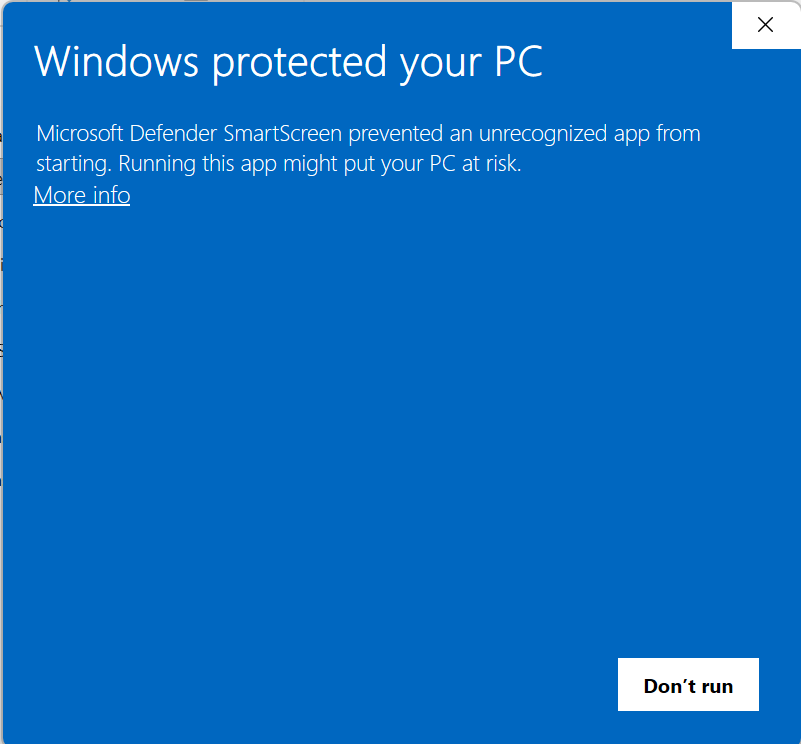
To be safe you can use your virus protection software to scan the contents of Game Controller Wedge-main to reassure yourself that it is OK to run the executable. Then click the “More info” link, followed by clicking the "Run anyway” button.
-OR- for no worries--
Download AutoHotkey V1.1 installer from https://www.autohotkey.com/Once downloaded, open the installer. Then choose the Express installation.
After that, you can double-click either of the GCW.ahk or GCW2.ahk files to use GCW and not get the worrisome Windows warning.
Always keep everything in the Game Controller Wedge-main folder together.